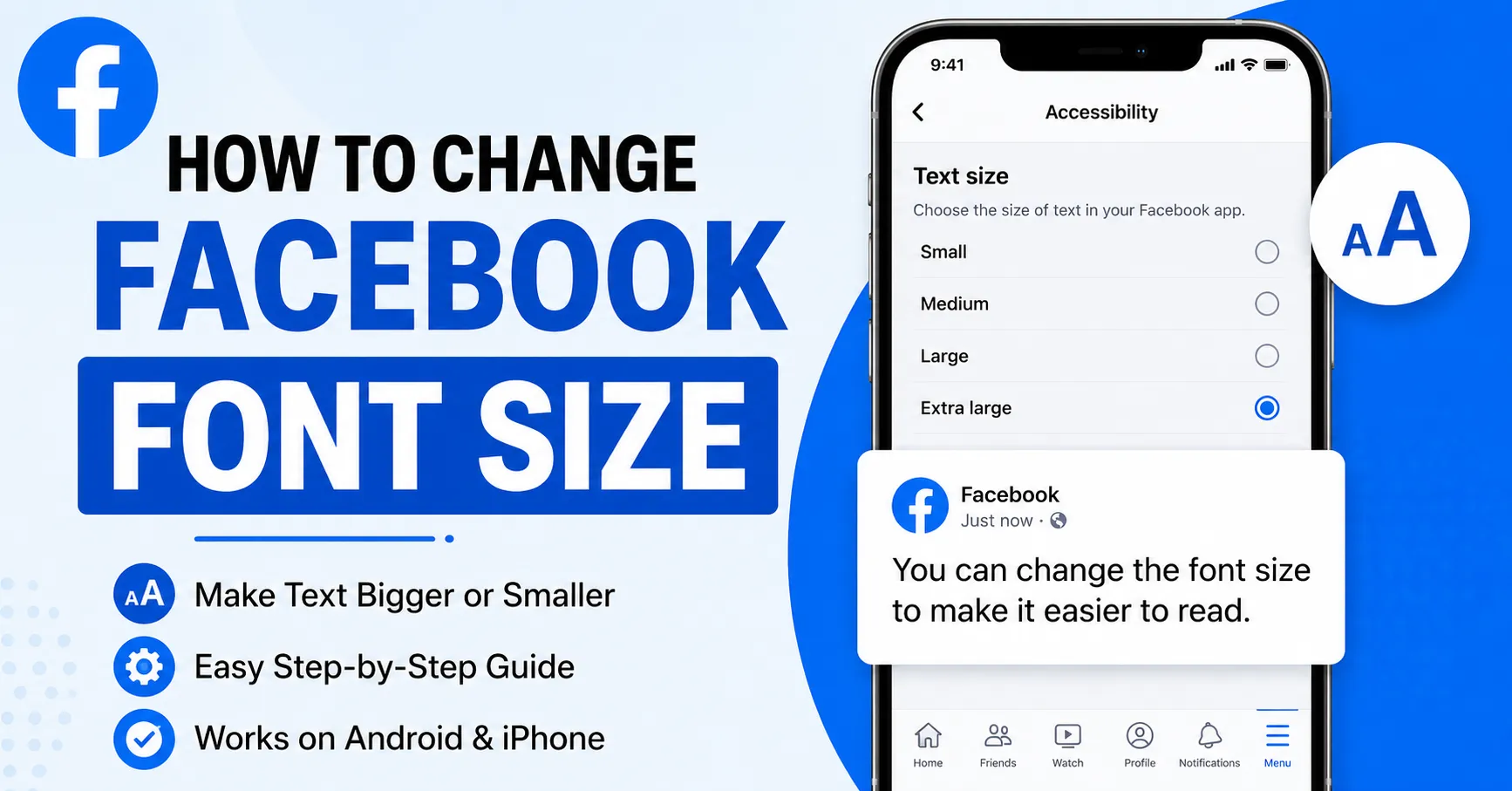
If Facebook text looks too small or too large, you do not necessarily need to change your device completely. Learning how to change Facebook font size can make posts, comments, menus, and other content much easier to read. The exact method depends on whether you use Facebook through a desktop browser, Android phone, iPhone, or iPad.
Facebook does not always provide a simple font-size slider inside its main settings. Instead, the most reliable solution often involves your browser’s zoom controls or your device’s accessibility and text-size settings.
In this guide, you will learn practical ways to increase or decrease Facebook text, understand the difference between font size and zoom, troubleshoot common problems, and choose the most comfortable settings for everyday browsing.
How to Change Facebook Font Size on a Desktop or Laptop
When you use Facebook on a Windows PC, Mac, Chromebook, or laptop, the easiest way to make Facebook text larger or smaller is usually through your web browser’s zoom feature. This approach is particularly useful when Facebook’s own interface does not provide the exact text-size control you want.
Browser zoom changes the size of the webpage as a whole. That means text, buttons, images, menus, and other interface elements may become larger or smaller together. For many users, this is preferable because increasing only the font can sometimes make the Facebook layout feel crowded.
Use Browser Zoom to Increase Facebook Text
Most modern browsers provide keyboard shortcuts for changing page zoom. Open Facebook in your preferred browser and use the appropriate shortcut.
On Windows:
- Press Ctrl + + to zoom in.
- Press Ctrl + – to zoom out.
- Press Ctrl + 0 to return to the default zoom level.
On Mac:
- Press Command + + to zoom in.
- Press Command + – to zoom out.
- Press Command + 0 to reset the page.
You can also open the browser menu and look for the Zoom option. Increase it gradually until Facebook feels comfortable to read.
Why Browser Zoom Is Often the Best Desktop Solution
Browser zoom is simple because you do not need to install an extension or modify Facebook’s account settings. It also works when Facebook changes its interface, because the browser controls the overall webpage presentation.
For example, if Facebook’s standard text appears too small on a high-resolution monitor, increasing the browser zoom to around 110% or 125% may make the page considerably easier to read.
However, extremely high zoom levels can cause some interface elements to move, wrap, or disappear behind menus. Therefore, increase the zoom gradually rather than immediately selecting the highest setting.
Adjust Windows Display and Text Settings
If Facebook is only one of several websites that look too small, changing Windows accessibility settings may be more appropriate.
- Open Windows Settings.
- Select Accessibility.
- Look for options related to Text size or Display.
- Increase the text size as needed.
- Reopen or refresh Facebook.
This approach can affect more applications and interface elements than browser zoom, so it is better suited to users who want larger text throughout their computer rather than only on Facebook.
How to Change Facebook Font Size on Android
Android phones provide several ways to make text easier to read. Because Android devices come from different manufacturers, the exact names and locations of these settings can vary.
Increase Android Font Size
Start by opening your phone’s Settings app. Search for Font size, Display size, Text size, or Accessibility.
Depending on your device, you may find the option under:
Settings → Display → Font size
or:
Settings → Accessibility → Display size and text
Move the text-size slider toward the larger setting and then open Facebook again.
If the Facebook application supports the system’s text scaling behavior on your particular Android version, its text may become easier to read automatically.
Try Display Size When Font Size Is Not Enough
Font size and display size are not exactly the same thing. Font size primarily changes text, while display size can enlarge interface elements such as buttons, icons, and menus.
This can be particularly helpful if you have difficulty reading both Facebook’s text and its small navigation controls.
A practical approach is to increase font size first. If Facebook still feels too small, make a modest adjustment to display size as well.
Use Android Accessibility Features
Android also includes accessibility features designed to improve readability. Depending on your device, you may find options such as:
- Larger text
- High-contrast text
- Magnification
- Display size
- Bold text
- Accessibility shortcuts
These settings can help when ordinary font-size adjustments are not sufficient.
If changing Android’s text settings does not affect Facebook, update the Facebook application and restart your phone. Some app interfaces may handle system text scaling differently from others.
How to Change Facebook Font Size on iPhone or iPad
Apple devices include built-in text-size controls that can make supported apps easier to read. The settings are available through the iPhone or iPad’s accessibility and display options.
Change Text Size in iOS
Open:
Settings → Display & Brightness → Text Size
Move the slider to the right to increase text size or to the left to reduce it.
You can then return to Facebook and check whether the application reflects the change.
If you need text that is significantly larger, iOS also provides accessibility options for larger text.
Use Larger Accessibility Text
Go to:
Settings → Accessibility → Display & Text Size → Larger Text
Turn on the option for larger accessibility sizes if available, then adjust the slider.
This can be useful for users who find standard iPhone text difficult to read. Keep in mind that extremely large text can cause some apps to display less content on screen at once.
Control Text Size for Supported Apps
Recent iOS versions can also provide more granular text-size controls in supported situations. If Facebook does not respond to a particular system setting, the issue may be related to how the current Facebook app version handles iOS text scaling.
In that situation, combining iOS text settings with Facebook’s own accessibility options and device-level display settings may produce better results.
Understanding Facebook Font Size vs. Browser Zoom
One of the most important things to understand about how to change Facebook font size is that font size and zoom are not identical.
Font size specifically refers to the dimensions of text. A font-size setting may enlarge letters while leaving other interface elements relatively unchanged.
Browser zoom, on the other hand, enlarges or reduces the entire webpage. Text, images, buttons, menus, and other components can all change size.
This distinction explains why two people may use different methods to make Facebook easier to read.
If only the text seems too small, try a text-size or accessibility setting first. If the entire Facebook interface looks tiny, browser or display zoom may be the better solution.
What If Facebook Font Size Does Not Change?
There are several reasons Facebook text may not respond immediately to a font-size adjustment.
First, make sure you are changing the correct setting. A browser’s default font setting is different from its zoom setting, while Android and iOS have their own accessibility controls.
Second, close and reopen the Facebook app or refresh Facebook in your browser. Some settings do not become visible until the application reloads.
Third, check whether your Facebook application is updated. An outdated application can sometimes behave differently from the current version.
Quick Troubleshooting Checklist
- Refresh the Facebook page.
- Restart the Facebook application.
- Update Facebook.
- Check your device’s text-size settings.
- Try browser zoom on desktop.
- Check accessibility settings.
- Reset zoom if the layout becomes difficult to use.
- Restart your device if changes do not appear.
If the text suddenly becomes unusually large or small after changing settings, return the relevant setting to its default value and make smaller adjustments.
Can You Change Facebook’s Font Style Too?
Changing font size is different from changing the actual font style. Facebook controls much of its interface typography, so users generally do not have unrestricted control over the platform’s interface font.
However, people sometimes use Unicode-based text generators to create stylized characters for posts, profiles, comments, and social media content. These are not the same as changing Facebook’s built-in interface font.
If you want to create stylish text for social media posts, you can explore FontyGen for different font-generation options.
Best Facebook Font Size Settings for Comfortable Reading
There is no single perfect setting for everyone. Your ideal size depends on your screen, viewing distance, eyesight, device resolution, and personal preference.
For desktop users, a small browser-zoom increase can often provide a good balance between readability and screen space. For smartphones, increasing the system font size slightly is usually a better starting point than dramatically increasing display size.
Avoid making text unnecessarily large if it causes Facebook’s buttons, menus, or posts to become difficult to navigate.
A comfortable setup should allow you to read a normal post without repeatedly zooming in or moving your device closer to your face.
Frequently Asked Questions
Can I change Facebook font size directly inside Facebook?
Facebook’s available text and accessibility controls can vary by app version, operating system, and device. If a direct font-size option is unavailable, use your device’s accessibility settings or browser zoom.
How do I make Facebook text bigger on Chrome?
Open Facebook in Chrome and increase the browser zoom using Ctrl + + on Windows or Command + + on Mac. You can also use Chrome’s menu and adjust the Zoom setting.
How do I make Facebook text smaller?
Use the opposite approach: decrease your browser zoom on desktop or reduce the text-size setting on Android or iOS.
Does changing font size affect my Facebook account?
No. Changing browser zoom or device text settings generally affects how Facebook appears on your device. It does not change your Facebook account, posts, followers, or profile information.
Why is Facebook text suddenly huge?
You may have accidentally increased your browser zoom, device font size, display size, or accessibility text setting. Check those settings and return them to their default values if necessary.
Can I use a custom font on Facebook?
You generally cannot replace Facebook’s entire interface font with a custom font through normal Facebook settings. However, Unicode-style text can create different visual effects in content you publish.
Conclusion
Learning how to change Facebook font size is relatively simple once you know which setting controls the text on your particular device. Desktop users can usually rely on browser zoom, while Android and iPhone users can start with their device’s font-size and accessibility settings.
The key is to make gradual adjustments. Increasing text too much can make Facebook harder to navigate, while reducing it excessively can make posts and menus uncomfortable to read.
For the best experience, choose a setting that improves readability without disrupting the overall layout. Whether you browse Facebook on a laptop, Android smartphone, iPhone, or iPad, the right combination of text size, display settings, and zoom can make everyday Facebook use significantly more comfortable.